
Biometric login allows you to access your account using features already available on your device, such as Touch ID, Face ID, Windows Hello, or Android biometrics. When you enable this feature, a passkey is created: a secure credential that replaces your password during biometric login.
Unlike many CRM platforms that rely on external identity providers, Onpipeline implements native biometric authentication. This means the biometric check happens directly on your device, without redirecting you to third‑party services. The result is a faster, smoother, and more secure login experience.
Benefits of enabling biometrics
Using biometrics provides several advantages:
- Faster login
You can sign in instantly without typing your password. - Stronger protection
Biometrics prevent credential theft because attackers cannot steal or guess your fingerprint or face data. - No biometric data shared
Your biometric information never leaves your device; the service only receives a cryptographic key. - Local authentication
Verification happens on your device’s secure hardware, reducing the risk of phishing and credential theft. - Backup access methods
You can still log in using your password and 2FA, ensuring you’re never locked out.
How it works
When you register a passkey, your device creates a pair of cryptographic keys:
- a private key, which stays securely on your device and is never shared;
- a public key, which is stored here.
During login:
- the service sends a verification request;
- your device asks you to confirm using biometrics or a local PIN;
- the request is signed with your private key;
- the service verifies the signature using the stored public key.
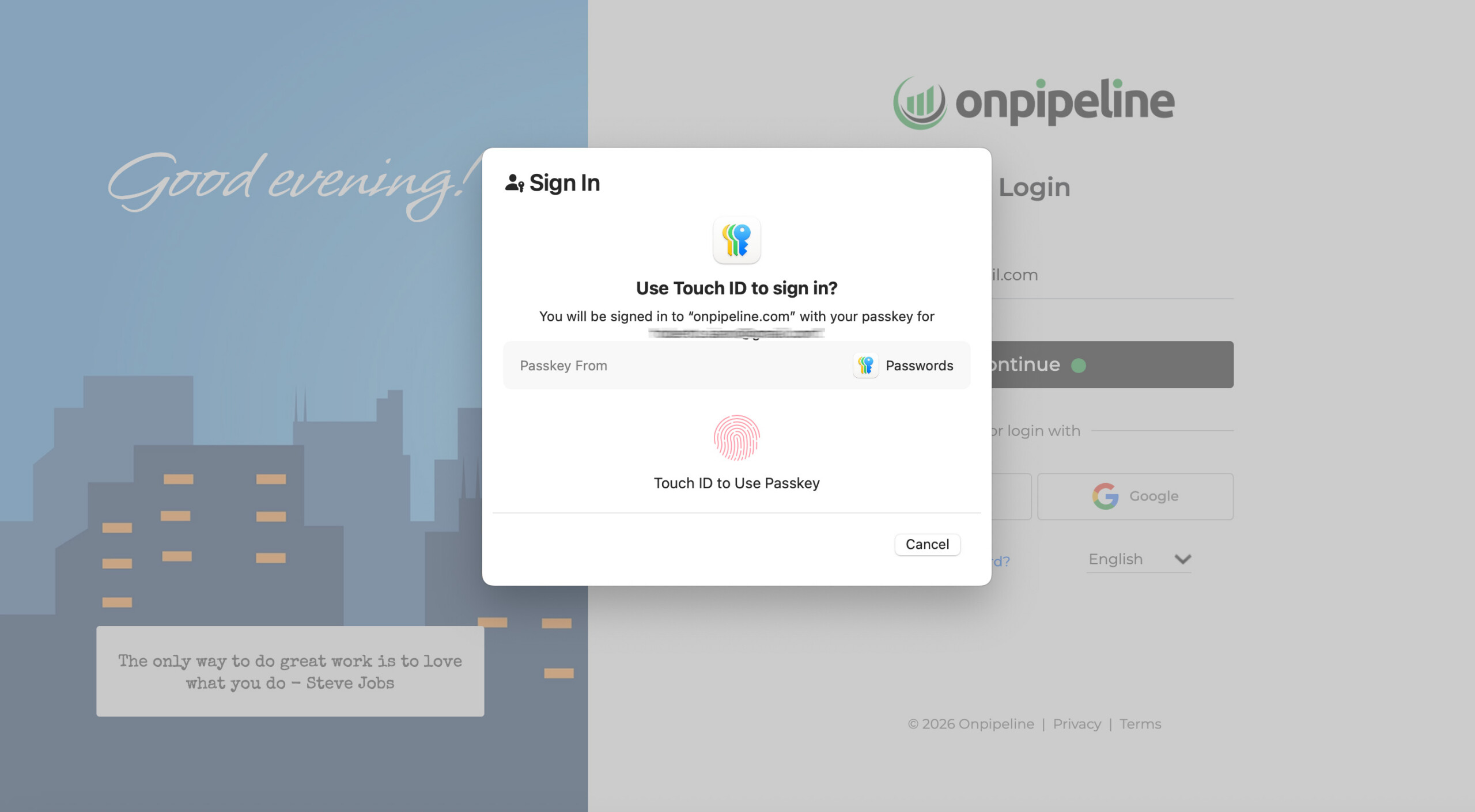
No password is transmitted, and no biometric data ever leaves your device. Biometric verification is handled directly by your device’s operating system, such as macOS, iOS, Android, or Windows.
Enabling biometrics for your account
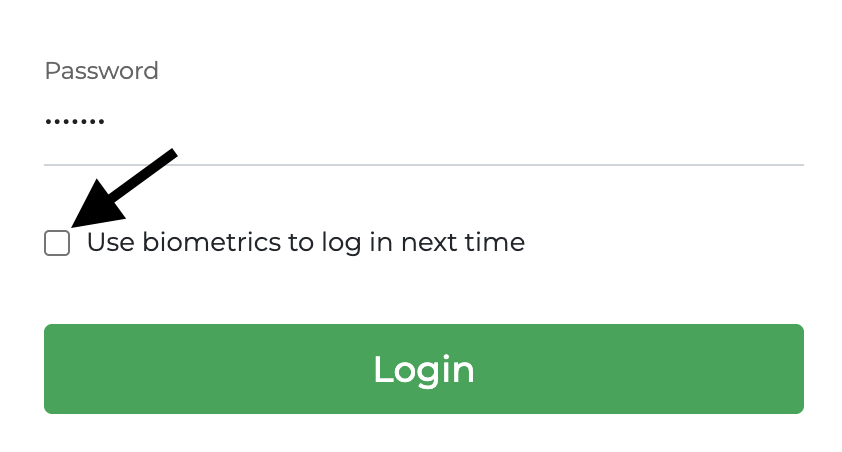
During login, you can choose whether to enable biometrics for future access.
1) Select the checkbox
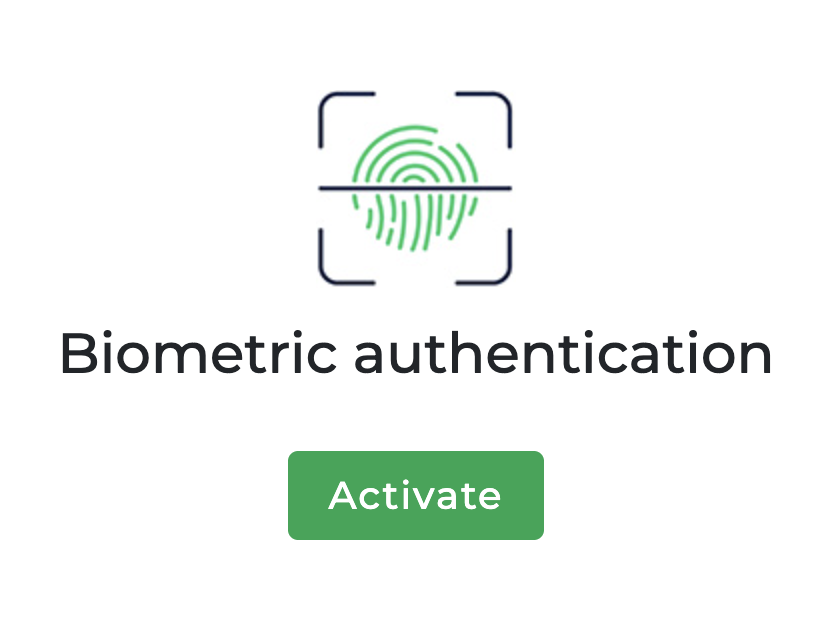
2) Click “Activate”
3) Confirm on your device (Face ID, Touch ID, or PIN)
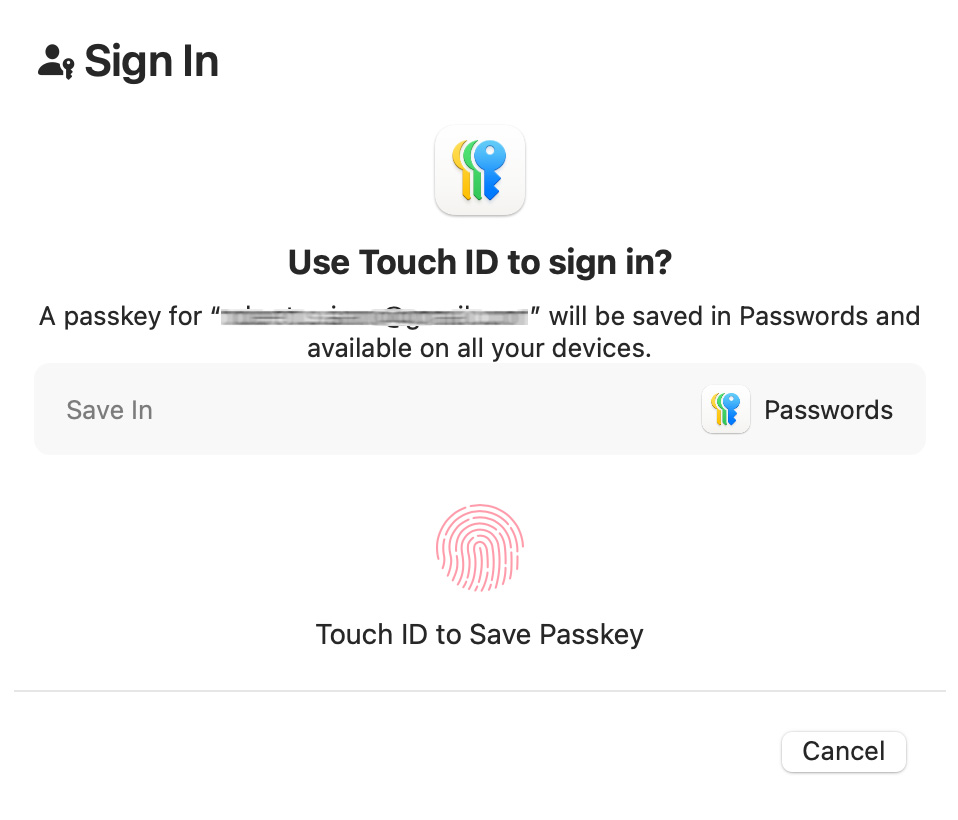
If you opt in, your device will be registered and you’ll be able to use the passkey for faster logins. If you choose not to enable it (cancel button), you can continue using your account normally.
Registered devices
You can view your registered devices from your account settings (Your Account).
Each registered device uses its own passkey for authentication.
You can register multiple devices for the same account, including:
- desktop or laptop (Mac or Windows);
- Android phone;
- iPhone or iPad.
When signing in from a new or unregistered device – or if biometric authentication is unavailable or canceled – you can still sign in using your password. In this case, two-factor authentication (2FA) is automatically required, and a one-time password (OTP) is sent to your email address as an additional verification step.
Disabling a passkey
If you no longer want to use a passkey on a device, you can remove it at any time. To do this, either delete the passkey directly from your device or remove the biometric authentication entry in the ‘Your Account’ section.