
Automations help you streamline your workflow.
If you are an Admin user you will find the link to create and manage automations in the Settings area. All users have a read access to the automations in place.
Example: In the diagram below the trigger is the transition to a specific stage of the pipeline. In this case, we send an email and create a task on the deal owner’s calendar.
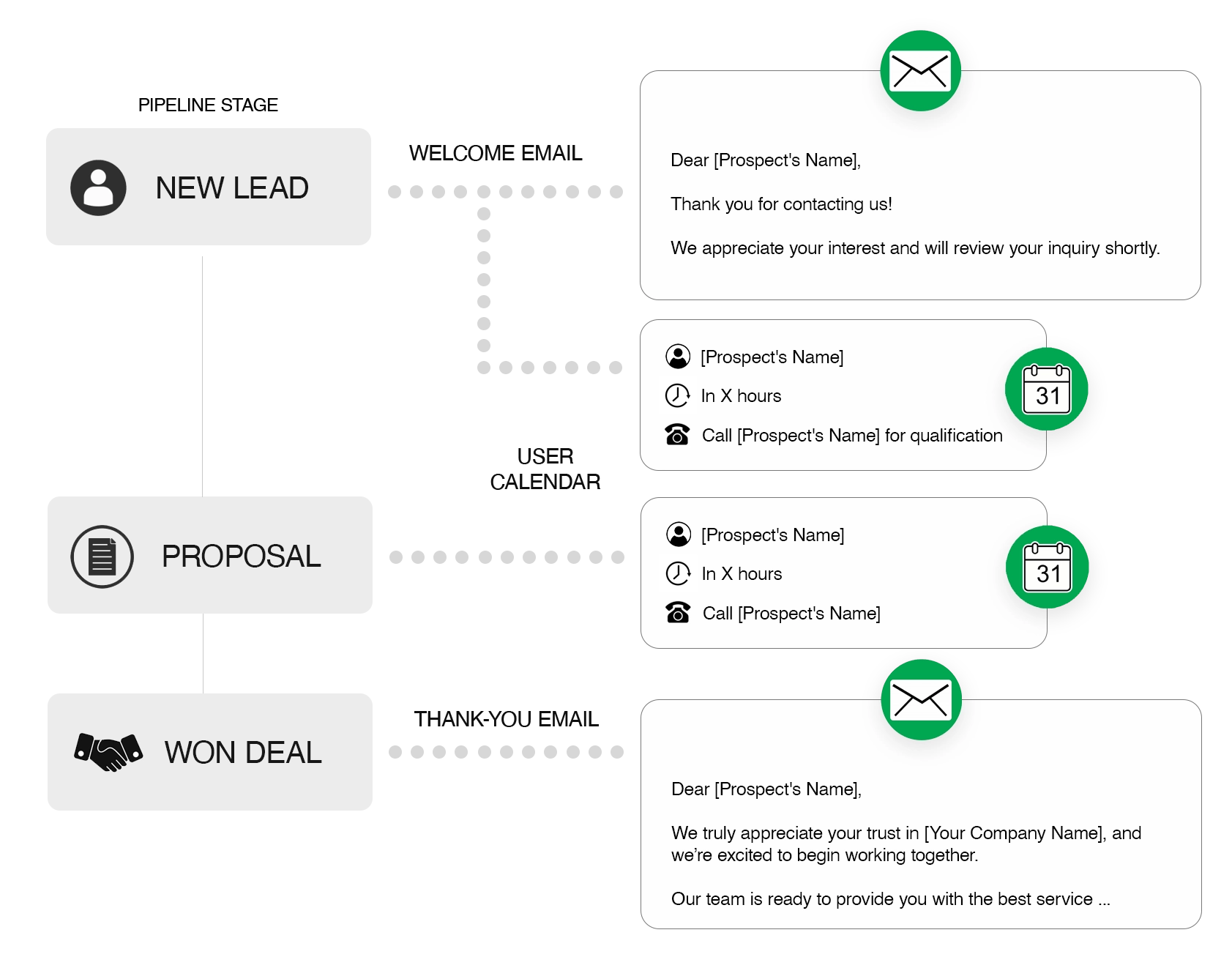
Templates:

The automated action will execute only once a day to prevent multiple messages from being sent to the same individuals if you repeat an action, such as moving a deal to the same stage multiple times.
Remember to activate the automation by dragging the control button next to the automation to the green color.

Send Email
You can configure the CRM to automatically send an email triggered by specific events:
You can set conditions based on any customer information, such as a profiling field. This enables you to send a tailored message according to the customer type.
For example:
Welcome Emails
– Create a welcome email when a new person is created (it will work when a new lead from leads IN is converted into a contact or when you add a new contact person to the CRM).
– Trigger the welcome email when the deal is created.
Updates
Send emails by simply updating any customer information or when the deal reaches a specific stage in the pipeline. This method allows you to provide useful information about the progress status or ask questions to the customer.
Thank-You Messages for Won Deals
Send a thank-you message when you win a deal by setting the deal status to “won” as a condition with the trigger “deal is updated.”
If no SMTP server is configured, the email will not be sent. Onpipeline first uses the sales rep’s SMTP settings (if available). If none are found, it falls back to the SMTP settings configured for the user’s team.
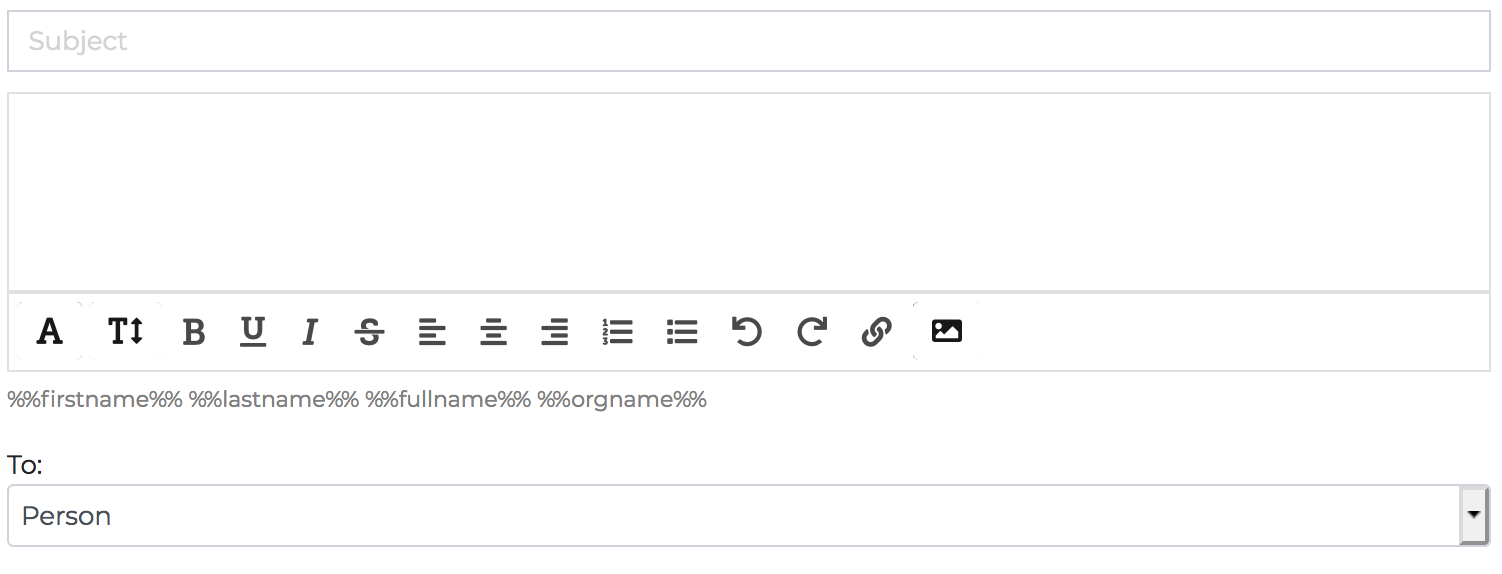
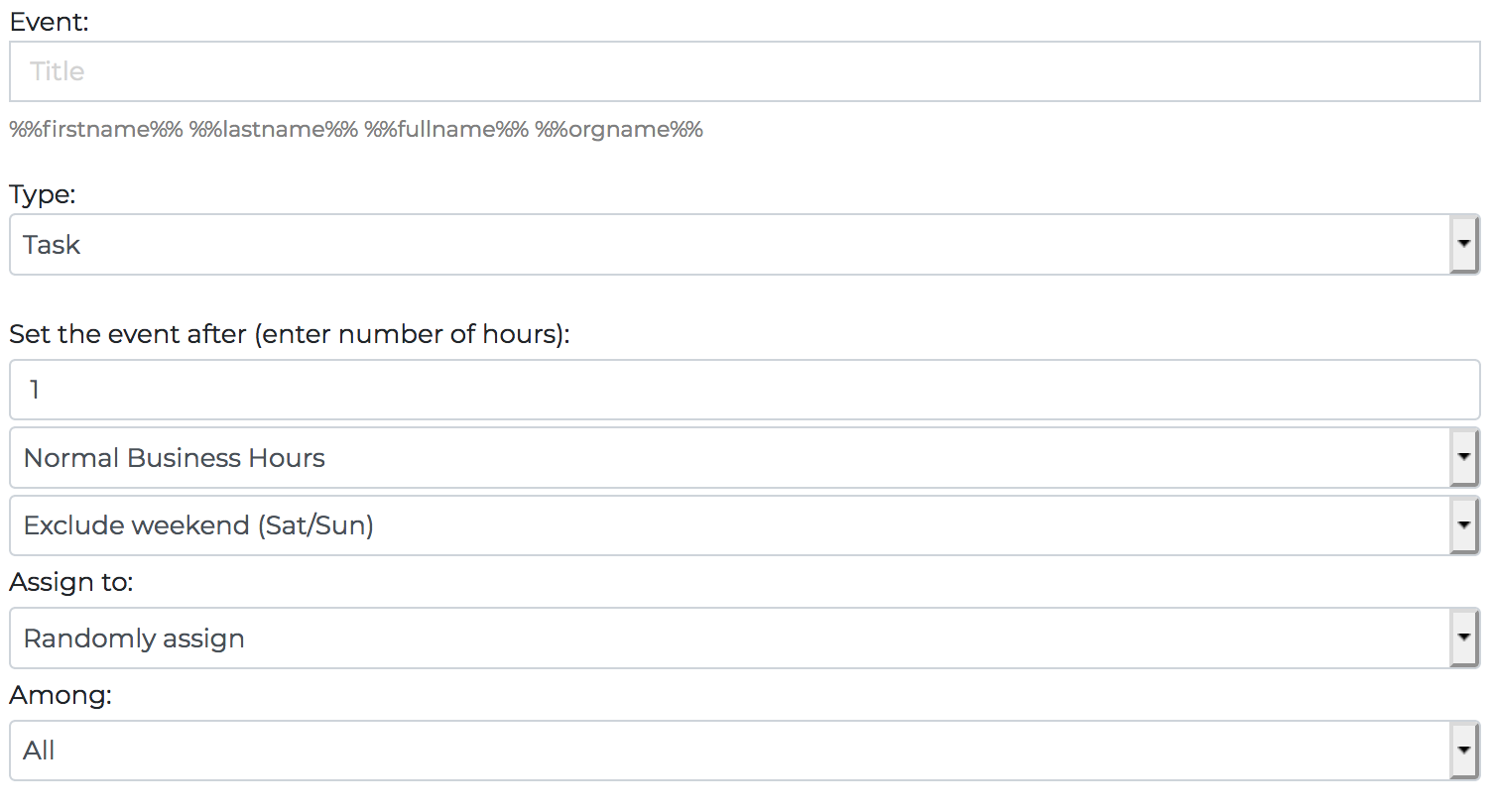
Create Event
When a deal is created or updated (i.e. moved to a stage) or when a person is created or updated, you can automatically create a calendar event / activity.
Triggers:
You can set conditions based on any customer information, such as a profiling field. This enables you to send a tailored message according to the customer type.
- Events for deals will be assigned to the deal owner by default.
- For person updates, they can be assigned to a specific user or randomly distributed across the entire organization or among members of a designated team (corresponding to those working on that specific pipeline).
Examples:
Deal Creation Event
When a new deal is added to the CRM, a calendar event can be automatically created, for example to schedule an initial call or meeting with the customer.
Deal Stage Change
When a deal moves to a specific pipeline stage, a calendar event can be automatically created. For example, when a deal is moved to the “Proposal Sent” stage, a follow-up call can be scheduled for the deal owner three days later.
Person Creation
When a new contact is added to the CRM, a calendar event can be created to ensure timely follow-up, such as an introductory call or meeting. The event can be assigned either to a specific user or distributed randomly among team members. You can also define different rules based on conditions, such as lead source or region.
You can also choose to create a deal using the “Create Deal” automation, triggered when the person is created, and then manage the workflow directly on the deal.
Deal Update
Automations can be triggered when a deal is updated. For example, when a deal’s status is set to “Won,” a follow-up call or meeting can be scheduled for the sales rep after a few days to gather feedback. For recurring or subscription-based deals, you can also create a reminder event to contact the customer before the renewal date.
Person Profile Update
When a contact’s information, such as job title or company, is updated, a calendar event can be created. This helps the team stay informed and act on potential opportunities, such as role changes or company growth.
Create Deal
You can automatically create a deal when a person is created or updated, based on certain conditions.
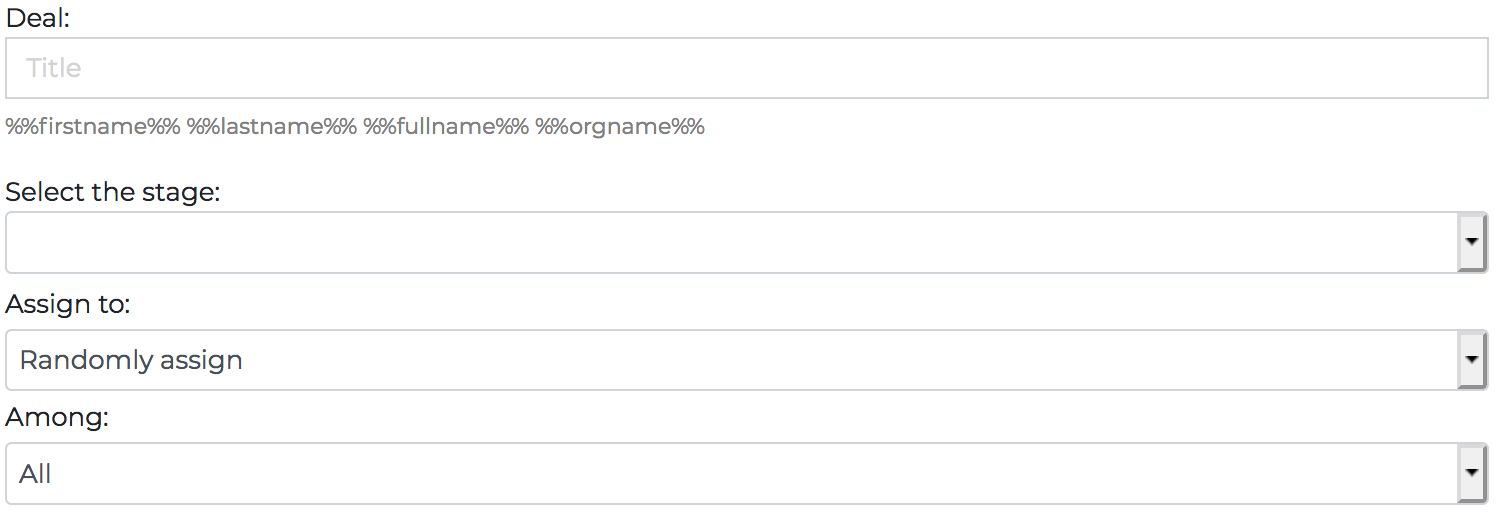
Random assignment in deals is based on a weighted round-robin formula, which considers the number of open deals managed by each user. This ensures that all sales reps receive a similar workload, maintaining an equitable distribution of opportunities.
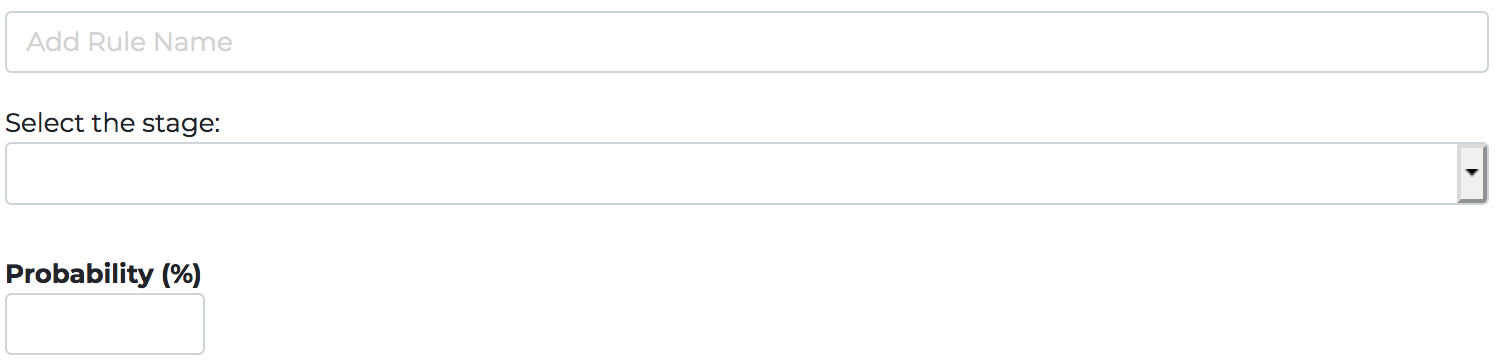
Set Probability
Change Deal Owner
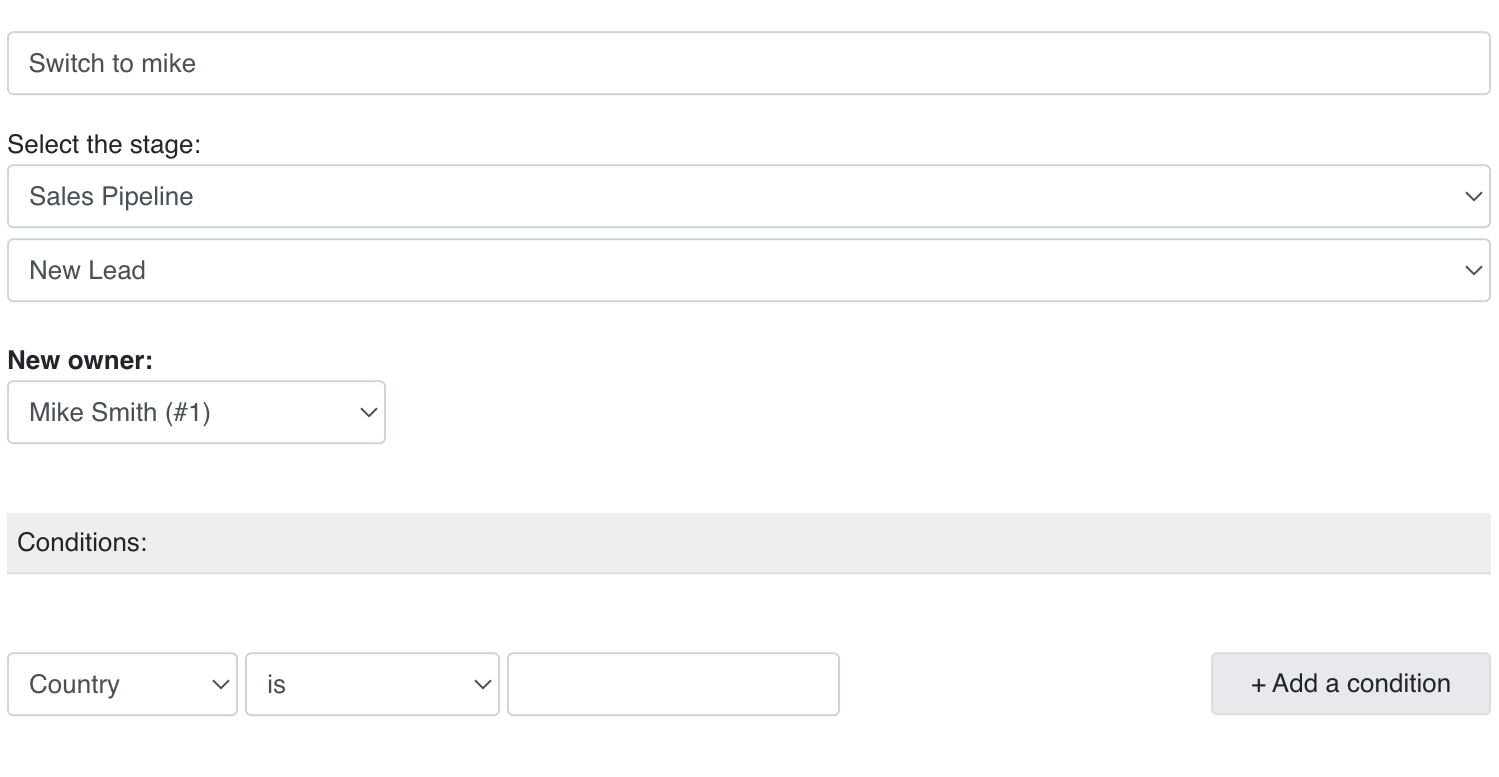
This automation enables the automatic transfer of deal ownership if the deal is moved to a designated stage and pipeline, under specific conditions.
Examples:
Lead Qualification Escalation
Automatically assign the deal to a senior sales representative for further qualification and nurturing.
Regional/Language Handover:
Transfer ownership to a sales representative specializing in that region to facilitate smoother negotiations and relationship management.
Product Expertise Assignment:
Reassign ownership to a product specialist who has expertise in handling such customizations for Product A.
Automations are not in real time, you may experience a delay between the event and the action
Not finding what you need?
We offer commonly used automations to meet typical needs, but if you have specific requirements, you and your developers can use API access. Moreover, our support team is always on hand to assist you in finding the solution you require, including creating custom automations.