
** Advanced plan required **
The Customer Portal gives your customers a secure, branded space where they can interact with your company. Customers can upload requested documents, access files shared with them, and view invoices, while everything remains connected to the relevant Person, Organization, or Deal in Onpipeline.
Files exchanged through the Customer Portal are protected with HTTPS/TLS encryption, ensuring secure transmission between the customer’s browser and Onpipeline.
The main benefits are:
- Faster document collection with structured requests and due dates.
- Easy file sharing directly from Person, Organization, and Deal pages.
- Less email back-and-forth thanks to a dedicated customer area.
- Automated document requests based on Deal events.
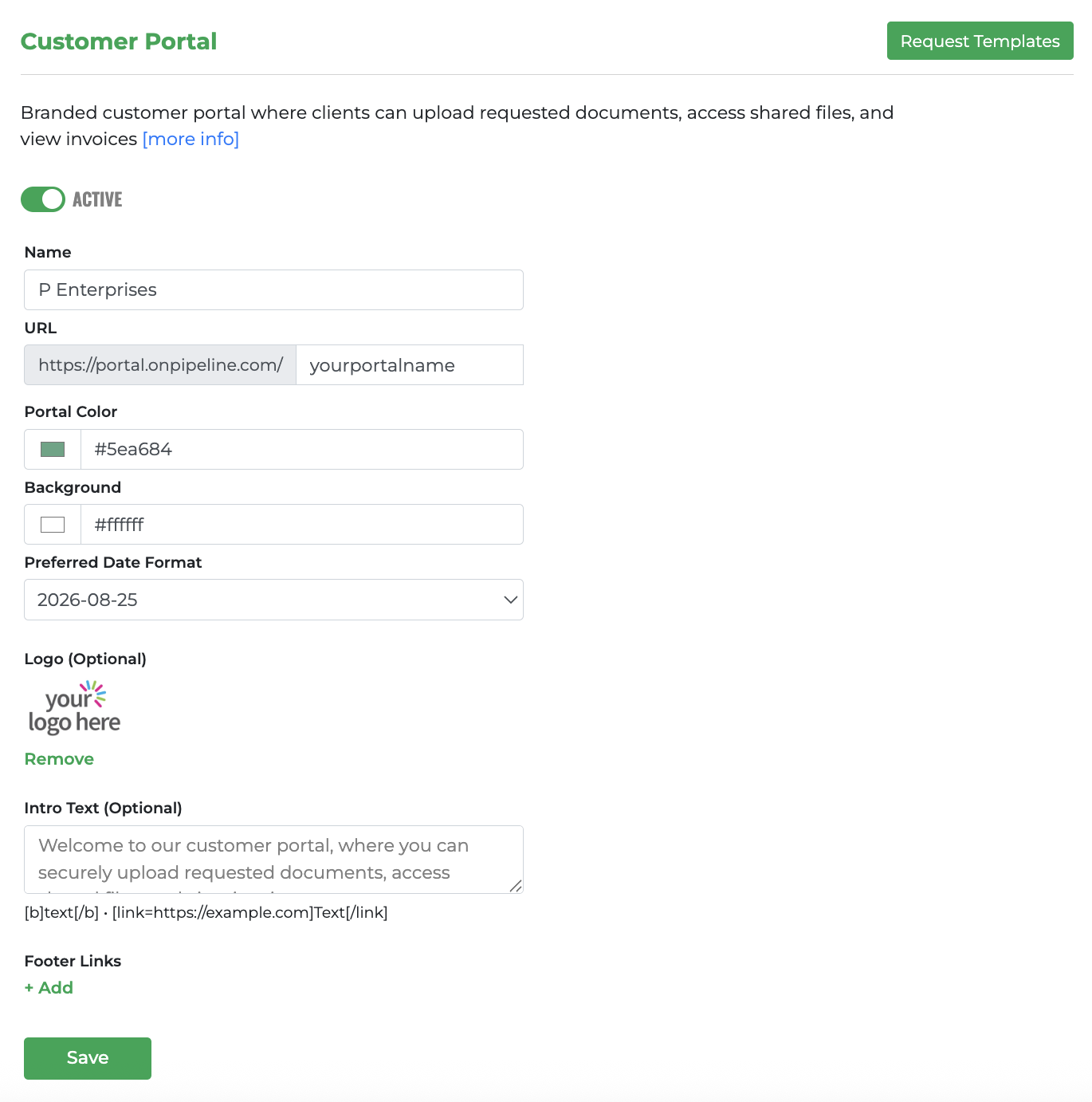
- A consistent customer experience using your company name, logo, colors, custom URL, and introductory text.
Customer Portal Access
Customer Portal access is managed individually for each Person. Each person has their own portal account, which can be activated or suspended independently.
Customer Portal login.
What a customer can see in the portal depends on their relationships in Onpipeline:
- Content assigned directly to the Person is visible to that person.
- If the Person is associated with an Organization, they can access portal content related to that Organization.
- If the Person is associated with a Deal, they can access portal content related to that Deal.
This means that files and Document Requests can be created at the Person, Organization, or Deal level while remaining accessible to the appropriate people through their individual portal accounts.
Portal access itself is always controlled at the Person level: suspending one person’s access does not affect other people associated with the same Organization or Deal.
Password-Free Login: Access is granted using a one-time password (OTP) sent to the customer’s email address each time they log in. The OTP expires after 10 minutes. This makes access simple and secure, while keeping each portal account tied to the individual Person and their verified email address.
For privacy and security reasons, the Customer Portal does not disclose whether an email address is registered. After an email address is submitted, the OTP verification screen is always displayed.
Multilingual Portal
The Customer Portal is available in multiple languages. Customers can select their preferred language when logging in.
Available languages are:
- English — default
- Spanish
- Portuguese
- French
- Italian
AUTOMATIC ACTIVATION – When a shared file or a Document Request is created, the system checks whether the relevant person already has portal access and, when possible, creates the access automatically using their email address. If portal access cannot be created automatically, for example because a valid email address is missing, this does not cancel Document Requests that have already been created. Portal access can also be activated manually from the Person record whenever needed.
Note: If you add the email address after the Document Request or File Sharing action has already taken place, Customer Portal access is not activated retroactively. In this case, you need to activate portal access manually for that Person.
Portal access can be activated or suspended individually for each person, without affecting other people associated with the same Organization or Deal.
Customer login activation o the person page.
Files and Document Requests
There are two main ways to exchange files with customers through the Customer Portal:
- File Sharing is used when you want to provide a file to the customer.
- Document Requests are used when you need the customer to provide a file to you.
File Sharing
You can share individual files with customers directly from a Person, Organization, or Deal page. This is useful when you want to make a file available in the Customer Portal without creating a Document Request.
- Open Attach File from the Person, Organization, or Deal page.
- Select the file you want to attach.
- Choose the desired option under Send Email.
- Enable Show on Customer Portal if the customer should see the file.
- Click Attach.

When Show on Customer Portal is enabled, the file becomes available to the customer through the portal. If the file is intended only for internal use, leave this option disabled.
If Do not send is selected, the file can still be displayed in the Customer Portal without sending an email notification.
The customer can then download the shared file directly from the portal.

Invoices
Customers can access their invoices directly through the Customer Portal. There is no need to share invoices individually. If you issue invoices in Onpipeline, the invoice becomes available to the customer when the Person is linked to an Organization associated with the relevant Billing Account. The only requirement is that Customer Portal access is active for that Person.
Document Requests
A Document Request is used when you need a customer to upload a specific document.
The customer sees the request in the Customer Portal and can upload the required file directly from there. A request can include a name, instructions, due date, reviewer, and sample file.
Document Requests remain connected to the relevant Person, Organization, or Deal, making it easy to see what has been requested, what has already been provided, and what is still missing.

Reviewing Documents
Once the customer uploads a file, reviewers can check the submitted document and manage its status.
If a document is rejected, the customer can see the rejection reason and submit a new file.

Request Templates
Templates are organized into Folders, allowing you to create a predefined set of document requests for each type of customer or process.
Each Folder can contain multiple Document Templates, with every request preconfigured by the administrator, including instructions, due date, reviewer, sample file, and other settings.
When a request is created from a Folder, the customer receives the entire set of documents included in that Folder, without the need to configure each request individually. This makes it easy to standardize document collection for different customer types, onboarding processes, deals, or business scenarios.
Folders
Each Folder is assigned to one target type:
- Person — requests are created for an individual contact.
- Organization — requests are created for an organization.
- Deal — requests are created for a deal.
A Folder can also define a default Reviewer, email notifications, reminders, Deal Automation when the target type is Deal, and its active status. Once a Folder contains Document Templates, its target type cannot be changed. Only active Folders are available when creating Document Requests.
Document Templates
Inside each Folder, you can create one or more Document Templates.
For each template you can define:
- Name
The document name — e.g. “Passport Copy”.
- Instructions
Provide clear instructions for the customer — e.g. “Please provide a certified copy of your passport issued by a lawyer, notary, or public official.”
- Default Due Date
The number of days allowed to provide the document after the request is created. A value of 0 means the document is due on the same day.
- Reviewer
Select an additional user who is allowed to review and approve the uploaded document. Administrators are always reviewers, and for manually created requests the user who created the request is also a reviewer. Automated requests have no requester, so assigning a reviewer may be necessary.
- Sample File
Optionally upload a sample file that the customer can download and use as a reference or starting point before submitting the requested document.
- Status
Activate or suspend the template when necessary. Suspended templates are not included when creating new requests.
Default Due Date
The Default Due Date defines when the customer is expected to provide the requested document.
For manually created requests, the Due Date is calculated from the day the request is created. For requests generated by a Deal Automation, it is calculated from the date of the Deal event that triggered the automation.
| Value | Due Date |
|---|---|
| 0 | Today |
| 1 | Tomorrow |
| 3 | 3 days later |
| 7 | 7 days later |
For example, if a request is triggered on August 25 and the Default Due Date is 5, the Due Date will be August 30.
Reviewer
Administrators are always reviewers.
For manually created requests, the user who creates the request is also a reviewer.
You can additionally assign a reviewer to a Folder or directly to a Document Template. If no reviewer is assigned to the document, the Folder reviewer is used.
For requests created automatically by a Deal Automation, the configured reviewer is used, while administrators always retain reviewer access.
Sample File
You can attach a Sample File to a Document Template to show the customer what kind of document is expected.
The customer can download the Sample File from the Customer Portal and use it as a reference or starting point before uploading the requested document.
Sample Files are particularly useful for forms, spreadsheets, declarations, contract templates, or documents that must follow a specific format.
Email Notifications
A Folder can optionally send an email when Document Requests are created.
You can configure:
- Language
- Subject
- Message
- Reminder Interval
The email message must contain:
{{portal_url}}
This shortcut is automatically replaced with the link the customer uses to access the Customer Portal. If {{portal_url}} is missing, the Folder cannot be saved while email notifications are enabled.

Reminder Emails
The Reminder Interval defines how often the customer receives a reminder while requested documents are still missing.
- 0 — reminders disabled
- 3 — send a reminder every 3 days
- 7 — send a reminder every 7 days
Reminders are sent once every 24 hours and automatically stop 30 days after the first notification.
Creating Document Requests
Document Requests can be created in two ways:
- Manually — select the required templates from a Person, Organization, or Deal.
- Automatically — Deal requests can be created when a Deal is won or reaches a configured Pipeline Stage.
Existing requests are checked before new ones are created..
Deal Automations
Folders with target type Deal can automatically create Document Requests based on Deal activity.
Automation can be triggered when:
- A Deal is Won.
- A Deal reaches a specific Pipeline Stage.

When a Deal Is Won
Select Won Deals to automatically create the Folder’s Document Requests when a Deal is marked as won.
You can use this trigger by itself or add conditions to restrict which won Deals should generate requests.
When a Deal Reaches a Pipeline Stage
Select Deal Stage Changes, then choose:
- The Pipeline.
- The Stage.
The requests are created when the Deal reaches that Stage.
Automation Conditions
Conditions allow you to further control which Deals should trigger an automation.
Depending on the available Deal information, conditions can use fields such as:
- Deal Value
- Probability
- Pipeline
- Assigned User
- Products
- Deal Custom Fields
- Country
- Region
- City
Available comparisons can include:
- Equals
- Not Equal
- Greater Than or Equal
- Less Than or Equal
- Contains
- Does Not Contain
AND / OR Conditions
When more than one condition is configured, each additional condition can be connected using AND or OR.
For example:
Deal Value ≥ 10,000
AND Country = United States
OR Product contains Enterprise
Conditions are evaluated from left to right, so:
A AND B OR C
is evaluated as:
(A AND B) OR C
If no conditions are added, the selected Deal event alone is enough to trigger the automation.
What Happens when a Deal Automation runs
When a matching Deal event occurs, the system:
- Detects the Deal event.
- Checks the Folder’s automation settings.
- Evaluates any configured conditions.
- Creates the required Document Requests that do not already exist.
- Applies the settings defined by each Document Template.
- Makes the requests available through the Customer Portal.
- Checks Customer Portal access for the relevant contact and creates access when possible.
The requested documents will be available almost immediately – there may be a delay of up to 15 minutes after the event.
File Sharing vs. Document Requests
| Feature | File Sharing | Document Request |
|---|---|---|
| Provide an existing file to the customer | ✓ | |
| Ask the customer to provide a file | ✓ | |
| Available for Person, Organization, and Deal | ✓ | ✓ |
| Visible in the Customer Portal | ✓ | ✓ |
| Due Date | ✓ | |
| Reviewer | ✓ | |
| Sample File | ✓ | |
| Reusable Templates | ✓ | |
| Deal Automation | ✓ |
Use File Sharing when you are sending a file to the customer.
Use Document Requests when you are asking the customer to provide a file.
Example: Automated Customer Onboarding
Suppose you create a Deal Folder called New Customer Documents containing:
- Signed Agreement — due
0days - Company Registration — due
3days - Tax Certificate — due
7days
You configure the Folder to run When Deal is Won with the condition Deal Value ≥ 5,000.
When a matching Deal is won, all three Document Requests are automatically created.
If the Deal is won on August 25:
- Signed Agreement → August 25
- Company Registration → August 28
- Tax Certificate → September 1
The customer can then open the Customer Portal, view the requests, download any Sample Files provided, and upload the required documents.
The first email notification sent to customers for file sharing is delivered immediately. Notifications related to requested or rejected documents may experience delays of up to one hour from the event.


