
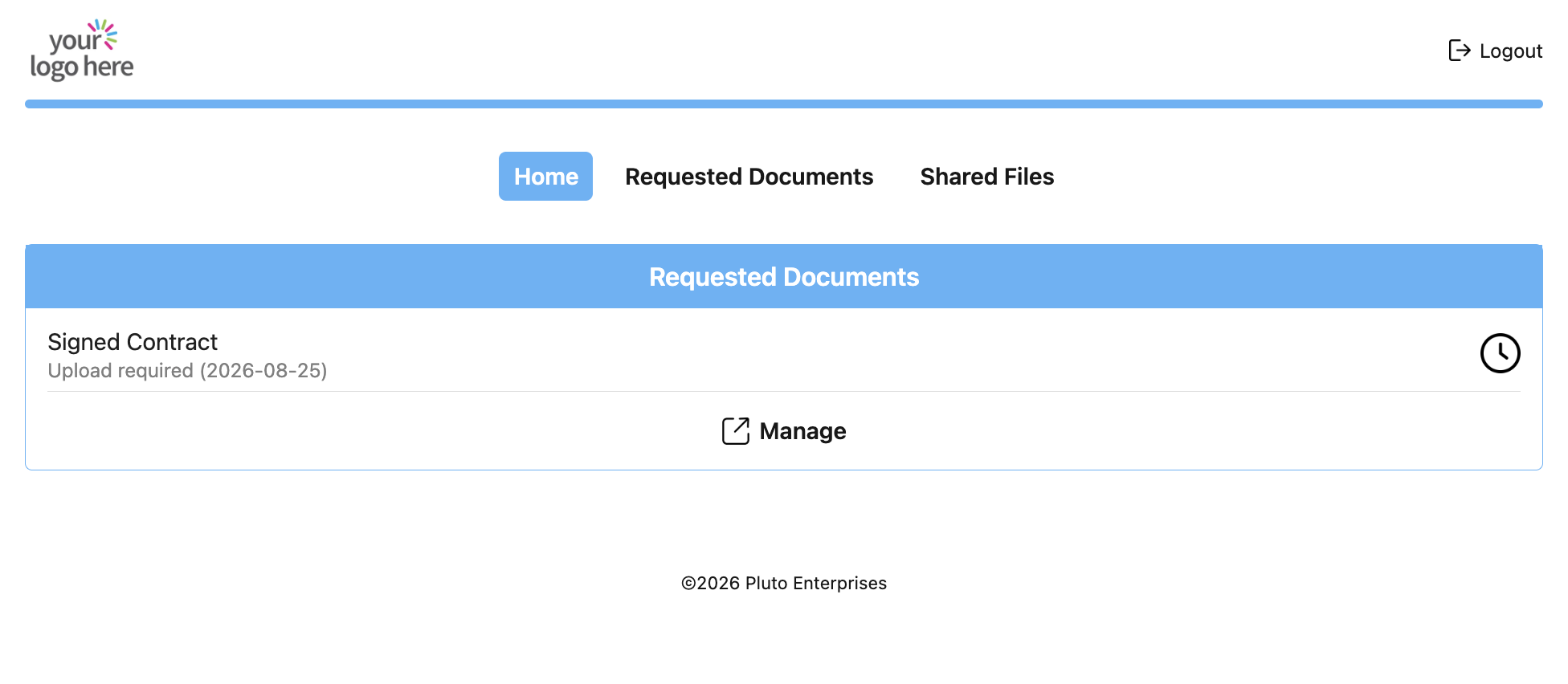
A Document Request is used when you need a customer to upload a specific document.
The customer sees the request in the Customer Portal and can upload the required file directly from there. A request can include a name, instructions, due date, reviewer, and sample file.
Document Requests remain connected to the relevant Person, Organization, or Deal, making it easy to see what has been requested, what has already been provided, and what is still missing.
Reviewing Documents
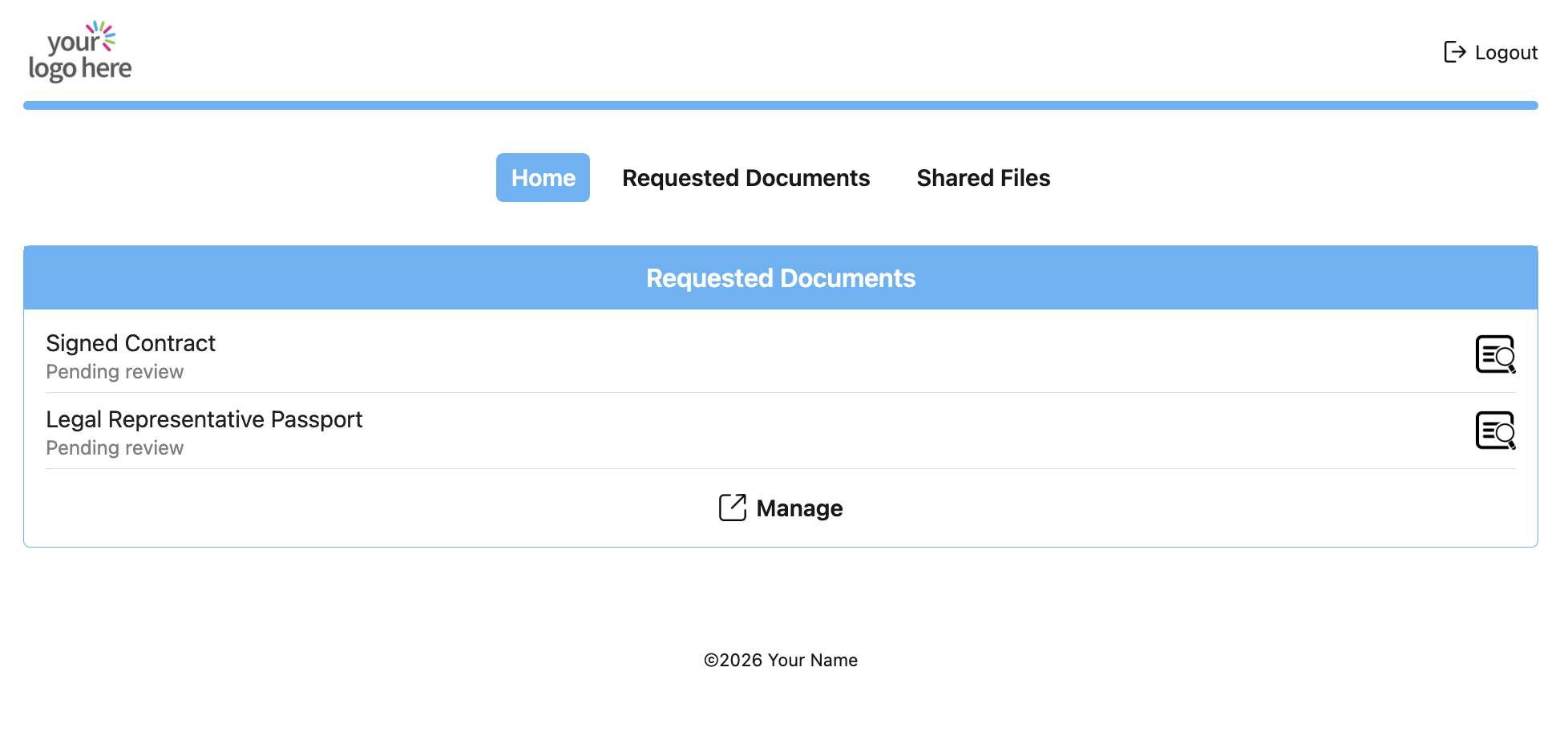
Once the customer uploads a file, reviewers can check the submitted document and manage its status.

If a document is rejected, the customer can see the rejection reason and submit a new file.
Request Templates
Templates are organized into Folders, allowing you to create a predefined set of document requests for each type of customer or process.
Each Folder can contain multiple Document Templates, with every request preconfigured by the administrator, including instructions, due date, reviewer, sample file, and other settings.
When a request is created from a Folder, the customer receives the entire set of documents included in that Folder, without the need to configure each request individually. This makes it easy to standardize document collection for different customer types, onboarding processes, deals, or business scenarios.
Folders
Each Folder is assigned to one target type:
- Person — requests are created for an individual contact.
- Organization — requests are created for an organization.
- Deal — requests are created for a deal.
A Folder can also define a default Reviewer, email notifications, reminders, Deal Automation when the target type is Deal, and its active status. Once a Folder contains Document Templates, its target type cannot be changed. Only active Folders are available when creating Document Requests.
Document Templates
Inside each Folder, you can create one or more Document Templates.
For each template you can define:
- Name
The document name — e.g. “Passport Copy”.
- Instructions
Provide clear instructions for the customer — e.g. “Please provide a certified copy of your passport issued by a lawyer, notary, or public official.”
- Default Due Date
The number of days allowed to provide the document after the request is created. A value of 0 means the document is due on the same day.
- Reviewer
Select an additional user who is allowed to review and approve the uploaded document. Administrators are always reviewers, and for manually created requests the user who created the request is also a reviewer. Automated requests have no requester, so assigning a reviewer may be necessary.
- Sample File
Optionally upload a sample file that the customer can download and use as a reference or starting point before submitting the requested document.
- Status
Activate or suspend the template when necessary. Suspended templates are not included when creating new requests.
Default Due Date
The Default Due Date defines when the customer is expected to provide the requested document.
For manually created requests, the Due Date is calculated from the day the request is created. For requests generated by a Deal Automation, it is calculated from the date of the Deal event that triggered the automation.
| Value | Due Date |
|---|---|
| 0 | Today |
| 1 | Tomorrow |
| 3 | 3 days later |
| 7 | 7 days later |
For example, if a request is triggered on August 25 and the Default Due Date is 5, the Due Date will be August 30.
Reviewer
Administrators are always reviewers.
For manually created requests, the user who creates the request is also a reviewer.
You can additionally assign a reviewer to a Folder or directly to a Document Template. If no reviewer is assigned to the document, the Folder reviewer is used.
For requests created automatically by a Deal Automation, the configured reviewer is used, while administrators always retain reviewer access.
Sample File
You can attach a Sample File to a Document Template to show the customer what kind of document is expected.
The customer can download the Sample File from the Customer Portal and use it as a reference or starting point before uploading the requested document.
Sample Files are particularly useful for forms, spreadsheets, declarations, contract templates, or documents that must follow a specific format.
Email Notifications
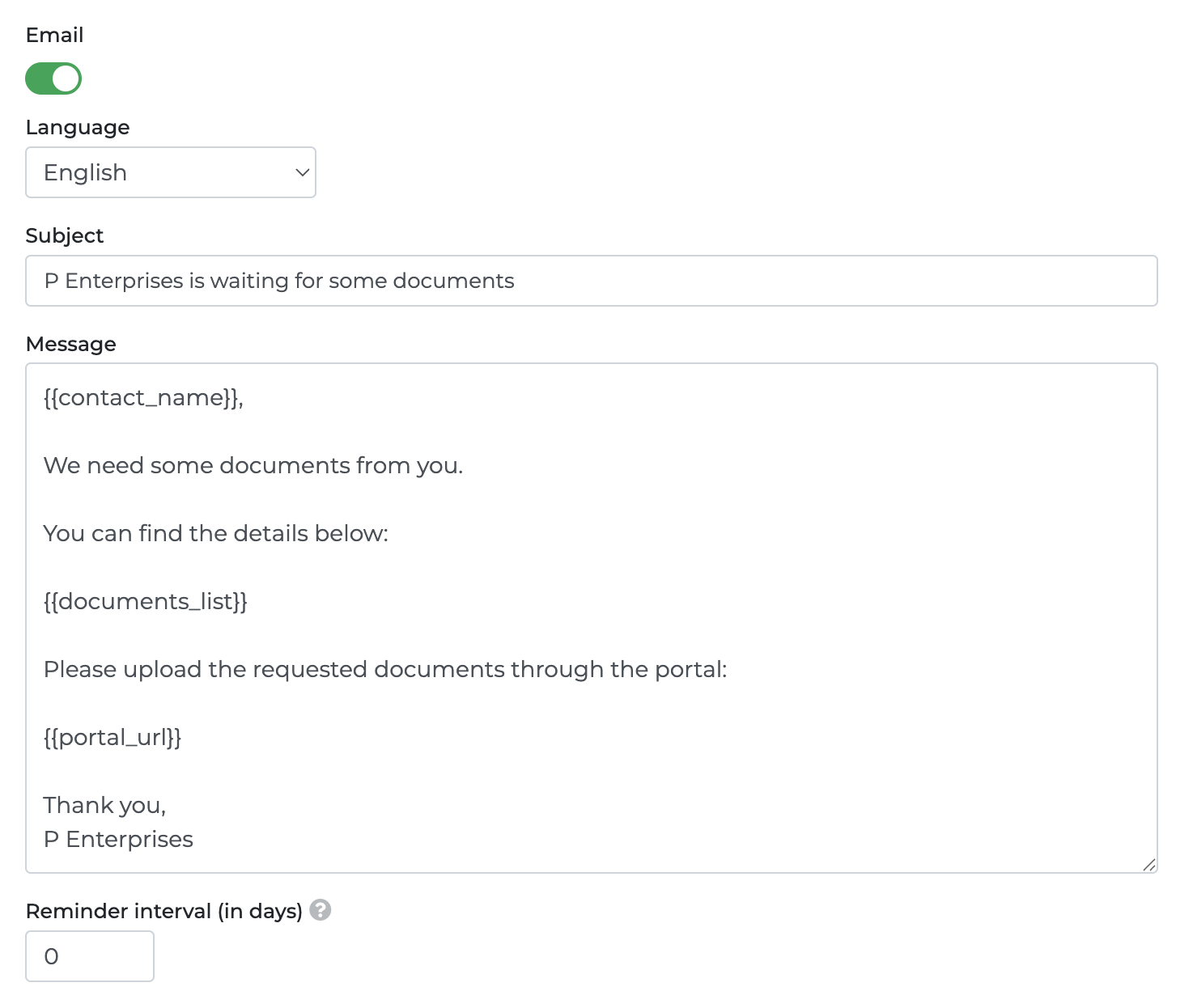
A Folder can optionally send an email when Document Requests are created.
You can configure:
- Language
- Subject
- Message
- Reminder Interval
The email message must contain:
{{portal_url}}
This shortcut is automatically replaced with the link the customer uses to access the Customer Portal. If {{portal_url}} is missing, the Folder cannot be saved while email notifications are enabled.
Reminder Emails
The Reminder Interval defines how often the customer receives a reminder while requested documents are still missing.
- 0 — reminders disabled
- 3 — send a reminder every 3 days
- 7 — send a reminder every 7 days
Reminders are sent once every 24 hours and automatically stop 30 days after the first notification.
Creating Document Requests
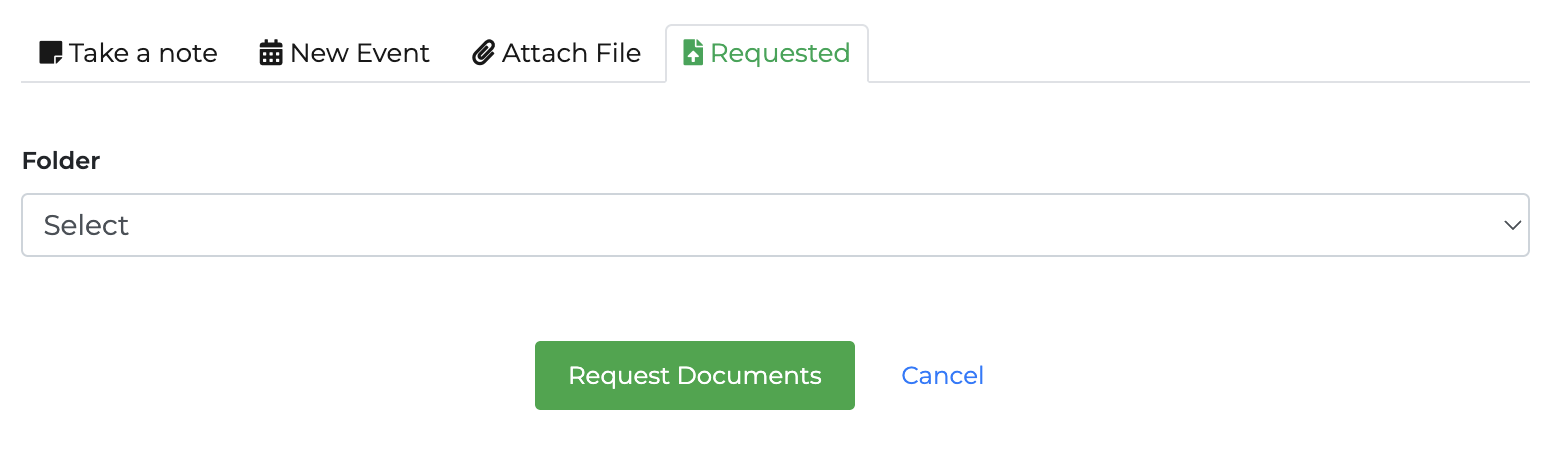
Document Requests can be created in two ways:
- Manually — select the required templates from a Person, Organization, or Deal.
- Automatically — Deal requests can be created when a Deal is won or reaches a configured Pipeline Stage.
Existing requests are checked before new ones are created..
Deal Automations
Folders with target type Deal can automatically create Document Requests based on Deal activity.
Automation can be triggered when:
- A Deal is Won.
- A Deal reaches a specific Pipeline Stage.
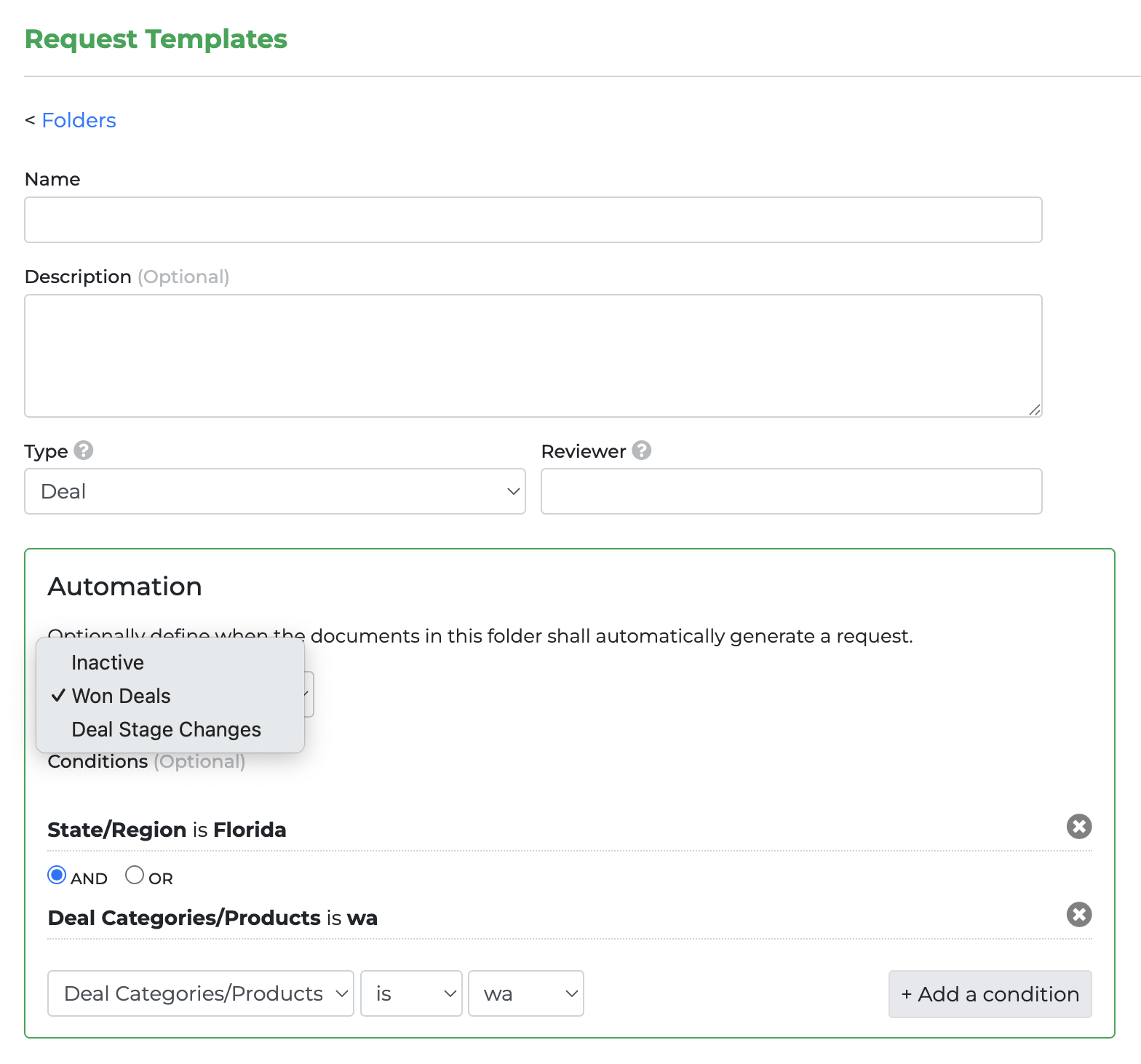
When a Deal Is Won
Select Won Deals to automatically create the Folder’s Document Requests when a Deal is marked as won.
You can use this trigger by itself or add conditions to restrict which won Deals should generate requests.
When a Deal Reaches a Pipeline Stage
Select Deal Stage Changes, then choose:
- The Pipeline.
- The Stage.
The requests are created when the Deal reaches that Stage.
Automation Conditions
Conditions allow you to further control which Deals should trigger an automation.
Depending on the available Deal information, conditions can use fields such as:
- Deal Value
- Probability
- Pipeline
- Assigned User
- Products
- Deal Custom Fields
- Country
- Region
- City
Available comparisons can include:
- Equals
- Not Equal
- Greater Than or Equal
- Less Than or Equal
- Contains
- Does Not Contain
AND / OR Conditions
When more than one condition is configured, each additional condition can be connected using AND or OR.
For example:
Deal Value ≥ 10,000
AND Country = United States
OR Product contains Enterprise
Conditions are evaluated from left to right, so:
A AND B OR Cis evaluated as:
(A AND B) OR CIf no conditions are added, the selected Deal event alone is enough to trigger the automation.
What Happens when a Deal Automation runs
When a matching Deal event occurs, the system:
- Detects the Deal event.
- Checks the Folder’s automation settings.
- Evaluates any configured conditions.
- Creates the required Document Requests that do not already exist.
- Applies the settings defined by each Document Template.
- Makes the requests available through the Customer Portal.
- Checks Customer Portal access for the relevant contact and creates access when possible.
The requested documents will be available almost immediately – there may be a delay of up to 15 minutes after the event.