
Recurring Events let you automatically create a sequence of calendar activities. They are useful for follow-ups, recurring tasks, periodic calls, reminders, or any activity that needs to be repeated over time.
What are recurring events designed for?
Recurring Events are designed for activities that need to repeat on a predictable schedule, including customer follow-ups, periodic calls, recurring tasks, meetings, reminders, deadlines, annual filings, reviews, and other scheduled activities.
Create a recurring event
You can create a recurring event when adding a new event or when editing an existing event that is not already part of a recurring series.
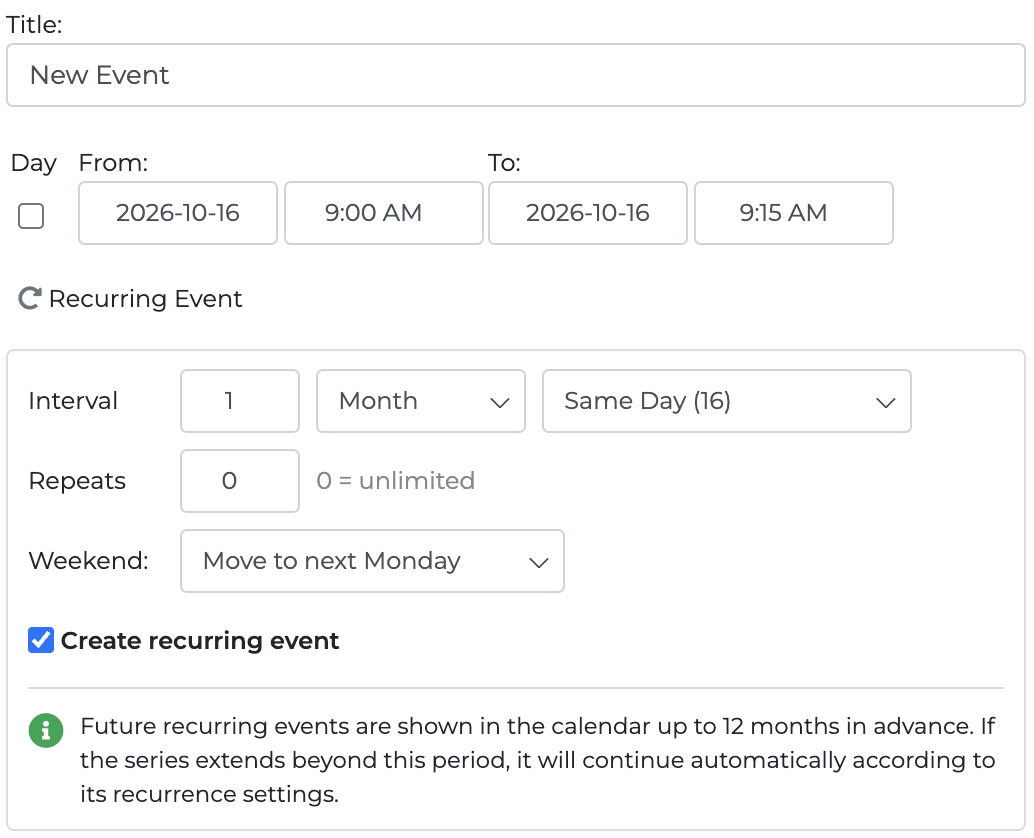
Open the event and click Recurring Event to display the recurring options.
You can then define:
- Interval — choose how often the event repeats: Day, Week, Month, or Year
- Repeats — the number of future repetitions to create. The original event is not included in this number.
- Monthly rule — for monthly recurrences, choose the same day of the month or the last day of the month
- Weekend — choose whether weekend dates remain unchanged, move to the previous Friday, or move to the following Monday
Set Repeats to 0 if you want the recurring series to continue without a predefined limit.
Check this box to create the recurring sequence.
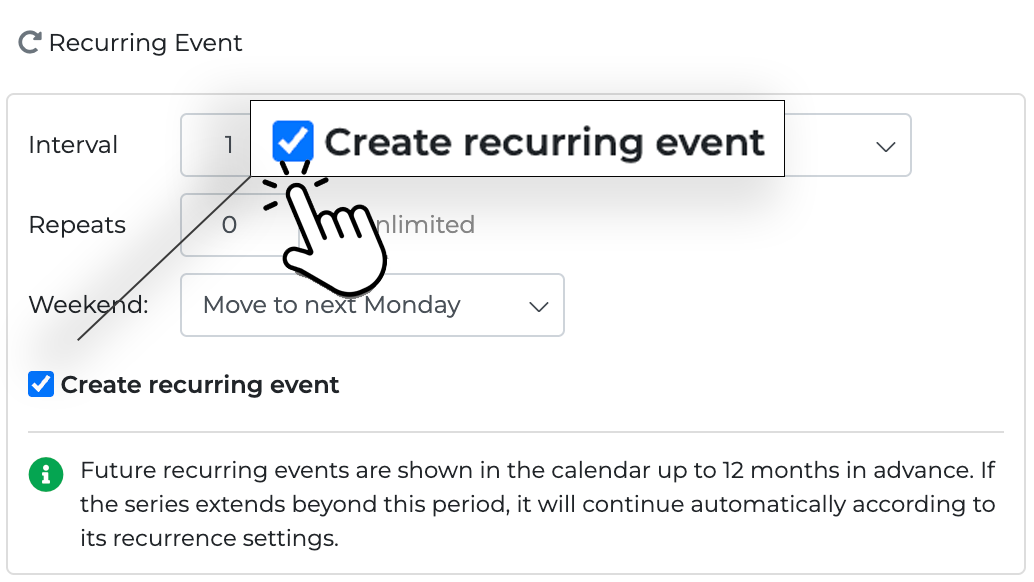
When the recurring event is saved, Onpipeline immediately creates the applicable future occurrences – up to 12 months in advance.
How the interval works
Recurring Events can repeat by day, week, month, or year.
Examples:
- Every 3 days
- Every 2 weeks
- Every month
- Every 3 months
- Every year
Weekly recurrences always remain on the same weekday.
Monthly recurrences can use either:
- Same day — for example, the 15th of every month
- Last day of the month — dynamically uses the actual final day of each month
When Last day of the month is selected, Onpipeline always uses the actual final day of each month, whether that is the 28th, 29th, 30th, or 31st. With Same day, Onpipeline keeps the original day whenever possible; if that day does not exist in a shorter month, the last available day of that month is used while preserving the original day for subsequent months.
Weekend handling
For daily, monthly, and yearly recurrences, you can choose how dates that fall on Saturday or Sunday are handled:
- Include weekend — keep the Saturday or Sunday date
- Move to previous Friday
- Move to next Monday
Weekly recurrences do not use this option because they always remain on the same weekday as the original event.
When are recurring events created?
When you create a recurring series, Onpipeline automatically adds its future occurrences to the calendar up to 12 months in advance. This makes future workload, deadlines, and availability immediately visible throughout Onpipeline.
For recurring series that extend beyond 12 months, Onpipeline automatically continues the series over time and keeps the calendar populated up to 12 months ahead. An unlimited recurrence therefore continues indefinitely even though only the upcoming 12-month window is materialized in the calendar at any given time.
Editing recurring events
The recurring rule itself cannot be edited. If you need to change the recurring settings:
- Open any event that belongs to the recurring series
- Open Recurring Event
- Click Stop recurring
- Create a new Recurring Event
The selected event will then become the starting point of the new recurring series.
Changes made to an individual occurrence apply only to that event and do not update the other events in the recurring series. If details such as the linked Deal, Person, Organization, title, location, guests, or other event information should apply to the entire series, they should be set on the original event before the recurring series is created.
Stop a recurring series
You can stop a recurring series from an event that belongs to it.
Open Recurring Event and click Stop recurring.
When a series is stopped:
- the original event remains unchanged
- past occurrences remain in the calendar
- future automatically generated occurrences are cancelled
- no additional occurrences will be created
This preserves the historical record while removing future commitments created by the recurring series.
Past events
A new recurring series cannot be created from an event whose start date is already in the past. If a past event already belongs to an active recurring series, you can still view the recurring information and stop the series.
Cancelled events
Cancelling an individual recurring occurrence does not stop the recurring series. The cancelled event remains cancelled, while the other occurrences and the recurring schedule continue normally. To stop the entire sequence, use Stop recurring from the Recurring Event options.
Cancelling the original event does not stop the recurring series.
Guests and notifications
Automatically generated recurring occurrences retain the relevant guest and calendar information from the original event. Creating future recurring occurrences does not send a new invitation or notification email for every event. This prevents participants from receiving multiple notifications when a recurring series is created or extended.
Normal reminders and notification features can still apply to individual events.
Reminders
When applicable, reminders work with recurring events just like they do with individual events.
Google/Microsoft Calendar synchronization
Recurring Events created in Onpipeline are managed by Onpipeline itself.
When calendar synchronization with Google Calendar is enabled, each generated occurrence is synchronized to Google Calendar as an individual event, not as part of a native Google recurring series. If a recurring series is stopped, future generated occurrences are marked as cancelled so that the synchronization process can update the connected calendar accordingly.
When calendar synchronization is enabled, recurring occurrences are synchronized as individual events. If guests are included, Google or Microsoft Calendar may send separate invitation emails for multiple occurrences. For long recurring series, we recommend avoiding guests unless those invitations are required.